


How to Find Keywords in Search Console (2026)
To find keywords in Google Search Console, open Performance > Search results, switch to the Queries tab, set a date range, and sort by impressions. Then filter for queries sitting around positions 11-20 and for queries no page on your site targets. Those are the keywords you can realistically chase next, and you already have the data for free.
I use this exact routine to pick titles, and it takes about 20 minutes. Let's break it down.
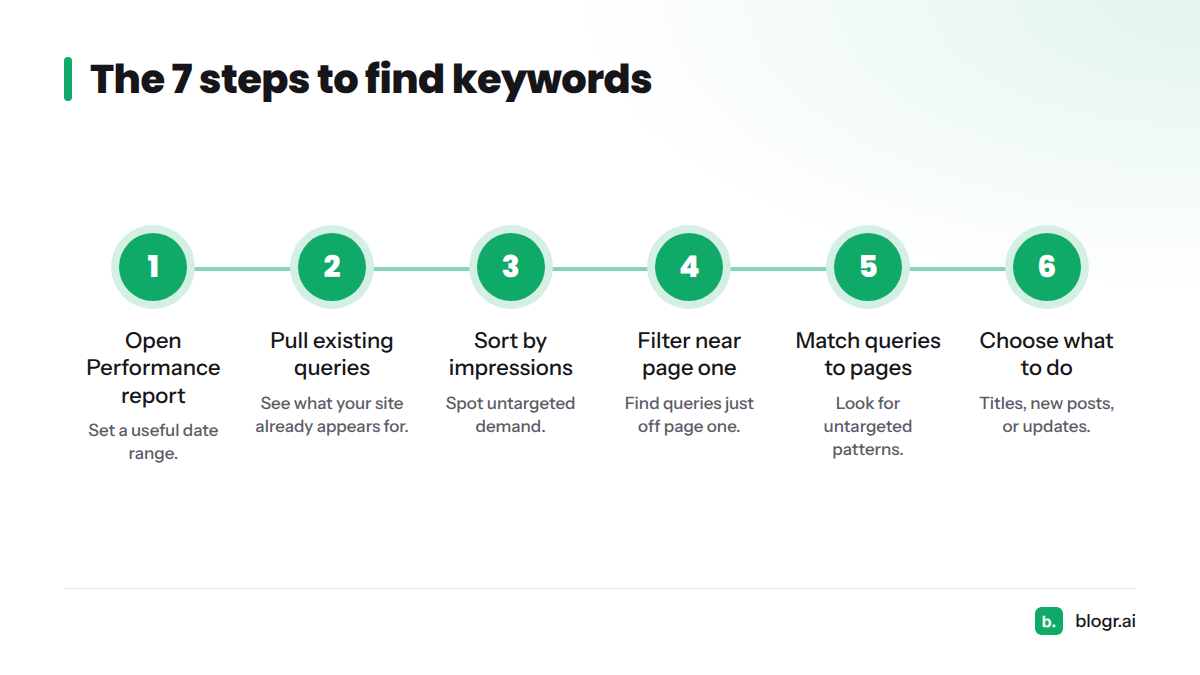
Quick answer: the 7 steps at a glance
- Open the Performance report and set a useful date range.
- Pull the queries your site already appears for.
- Sort by impressions to spot untargeted demand.
- Filter for queries sitting just off page one.
- Match each query to a page and look for untargeted patterns.
- Choose which queries become titles, new posts, or updates.
- Record your picks and set a review rhythm.
One honest limit before we start: Search Console shows what your site already appears for. It does not show search volume. Treat it as a map of demand you have already earned a seat at, not a full market survey. Google's Search Console product page describes the data as the queries that bring users to your site, with impressions, clicks, and position. That is the raw material for free keyword research with Search Console, and it is all this method needs.
Step 1: Open the Performance report and set a useful date range
Most people stall at the first click, so a quick orientation helps.
Where the Search results report lives
In Search Console, pick your property, choose Performance in the left menu, and open Search results. Google changes the interface from time to time. If a label has moved, look for the report showing total clicks, total impressions, average CTR, and average position. For a longer orientation on reading these numbers, see how to read Search Console data.
Which date range to choose
Use the date filter at the top. My default is a recent window, such as the last 28 days, followed by a longer one, such as the last 3 months. The longer view shows which queries are steady and which are one-off spikes. Short windows catch fresh movement; long windows smooth out noise. The compare option sits in the same date menu if you want to line up two periods.
Turn on the metrics you need
Click the metric tiles so all four are active. Google Search Console Help defines them like this:
| Metric | What it tells you |
|---|---|
| Clicks | How many times people clicked through to your site from Google results |
| Impressions | How many times a link to your site appeared in results |
| CTR | Clicks divided by impressions |
| Average position | The average topmost position your site held for the query or page |
That last one trips people up. Average position is an average across many searches, not a fixed rank. I come back to it in the mistakes section.
If you're new: ignore CTR for now. Impressions and position do most of the work in this method.
Step 2: Pull the queries your site already appears for
Open the Queries tab
Below the chart, the Queries tab is selected by default. It lists every query that produced an impression, with clicks, impressions, CTR, and position. These are the keywords you already rank for, and most guides stop right here. We use the list as a starting point. A separate guide covers the full queries report, so I will stay on the keyword-hunting side.
Use the query filters
Click + New (or the filter chip), choose Query, and pick a match type. Search Console offers several, including regular expressions, as documented on the Performance report help page. These search console query filters do most of the heavy lifting.
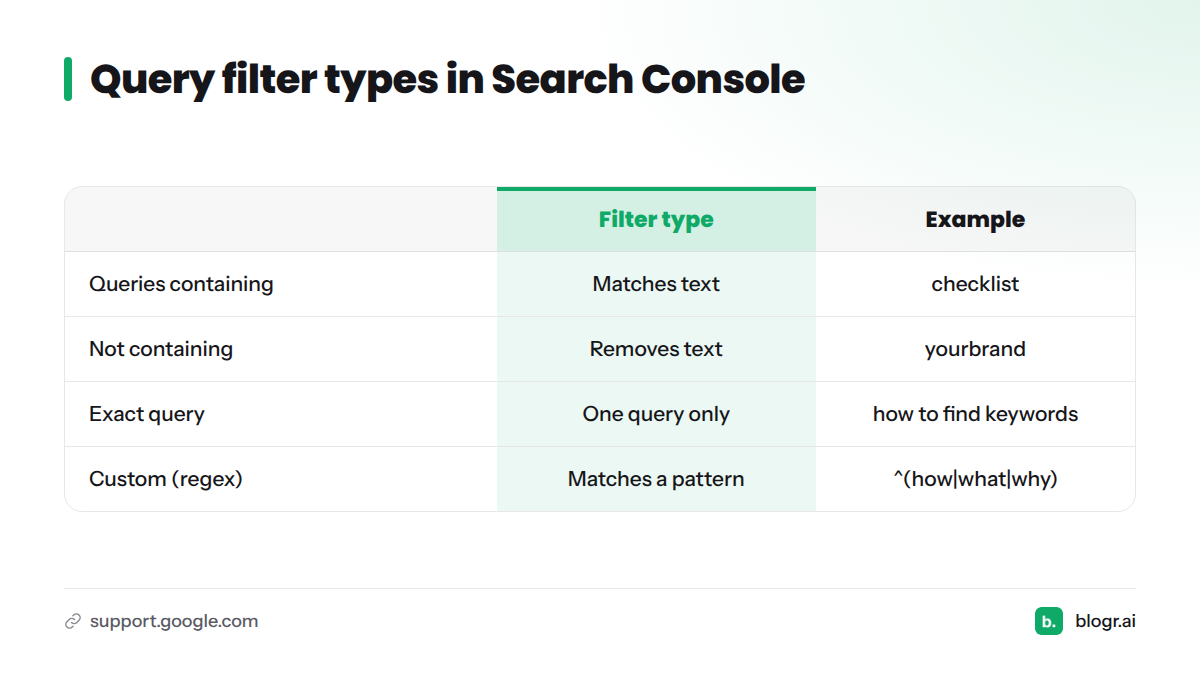
| Filter type | What it does | Illustrative example |
|---|---|---|
| Queries containing | Matches any query with the text | checklist |
| Queries not containing | Removes queries with the text | yourbrand |
| Exact query | Matches one query only | how to find keywords |
| Custom (regex) | Matches a pattern | ^(how|what|why) |
Exclude branded queries
Branded queries tell you people already know you. They rarely tell you what to write. Add a Queries not containing filter with your brand name, or a custom regex like brand|brandname|brand name to cover spelling variants. What remains is non-branded demand, which is where new ideas live.
Step 3: Sort by impressions to spot untargeted demand
Impressions show demand; clicks show what already works
Sorting by clicks shows what already works. Sorting by impressions shows where Google is testing your site for searches you have not fully answered. Click the Impressions column header once so the biggest numbers sit on top.
Spot high impressions with low clicks
Scan for rows with plenty of impressions and almost no clicks. The gap usually has one of two causes: your page ranks low, or your title does not earn the click. If the position is already good, read why you rank but get no clicks and how to fix CTR gaps.
Question-style queries
Question-style queries turn easily into headings and titles. To pull them out, add a custom regex filter. This regex filter in Search Console uses RE2 syntax, per Google's documentation.
^(who|what|why|how|when|where|which|can|does|is|are|should)\b
Illustrative pattern: you might see several "how do I..." queries landing on a page that only describes a feature. That is a sign readers want a how-to your site has not written.
Long-tail patterns
For long-tail keywords, filter for queries of four or more words:
([^ ]* ){3,}[^ ]*
Long queries are specific, so intent is easier to read. Sort the result by impressions and note the phrases that keep recurring.
Step 4: Filter for queries sitting just off page one
Queries around positions 11-20 sit on page two. A page there already has some relevance, so a stronger title, a better section, or a fresher update may move it. That is a heuristic, not a guarantee. I will not promise a jump, because no one can.
How to apply a position filter
Add a Position filter, choose Greater than, and enter 10.9. Add a second Position filter, choose Smaller than, and enter 20. Keep impressions sorted high to low. Position is averaged, so a query showing 14.2 may have appeared at 8 for some searches and 30 for others.
For the full method, including how to rank these candidates, read our guide to striking distance keywords.
Step 5: Match each query to a page and look for untargeted patterns
Use the page filter to see which URL receives each query
Click a query row to filter by it, then switch to the Pages tab. You now see which URL Google shows for that query. You can also go the other way: add a Page filter first, then read the Queries tab to see everything one URL appears for.
The "no match" test
Here is the test I use. For each promising query, ask whether any page has that phrase, or a close variant, in its title or headings. If the query has impressions but no page was written for it, you have a no match. A no match is an untargeted keyword.
Recurring unmatched patterns
One odd query is noise. Five queries sharing a theme, such as several "template" or "vs" queries hitting the same general page, point to untargeted demand. To group them, the free keyword clustering tool does the job, so I will skip clustering here.
Check search intent before you commit
Search the query in Google and look at what ranks: guides, product pages, videos, forums? If your page type does not match, the keyword is a poor fit.
Here is an illustrative worked example (patterns, not real results):
| Query pattern | Page it lands on | Intent fit | Verdict |
|---|---|---|---|
| "how to [task] step by step" | Feature overview | Weak: wants a tutorial | New post |
| "[topic] checklist" | Existing guide with a checklist section | Strong | Update and retitle |
| "best [tool] for [use case]" | Homepage | Weak: wants a comparison | New post |
| "[brand] pricing" | Pricing page | Strong | Leave alone |
Step 6: Choose which queries become titles, new posts, or updates
The decision tree
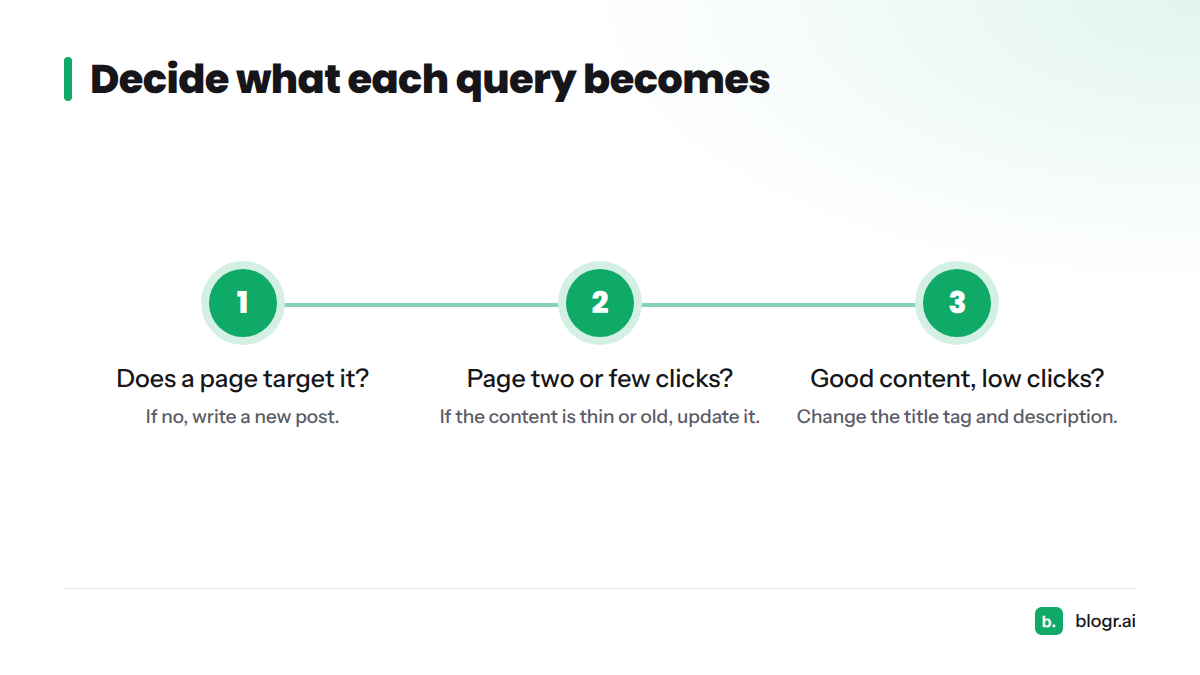
Run each query through three questions:
- Does a page already target it? If no, write a new post.
- If yes, does the page rank on page two or earn few clicks? If the content is thin or old, update it. Our guide on updating old blog posts shows how.
- Is the content good but clicks low? Change the title tag and description.
How to turn a query into a title
- Keep the query phrase near the front of the title.
- Match the intent you saw in the results, such as a how-to, list, or comparison.
- Write for a human first. If the phrase reads awkwardly, reword it.
Take the query "find keywords in search console". It becomes "How to Find Keywords in Search Console (2026)". The phrase leads, the format promises steps, and the year signals freshness.
Quick rules of thumb
- High impressions, no matching page: new post first.
- Page two, matching page: update before writing something new.
- Good position, weak CTR: fix the title.
- Wrong intent: skip it, however many impressions it has.
This is also how blogr.ai sources titles. It draws them from queries a site already appears for, especially those just off page one, and every title waits for your approval before anyone writes it. You can see the same idea in the Search Console SEO tool, and read how to turn GSC data into an SEO to-do list.
Step 7: Record your picks and set a review rhythm
What to log
Keep a simple sheet. A dedicated keyword research template guide covers a fuller version. Start with these columns:
| Column | Example entry |
|---|---|
| Query | the exact phrase |
| Page | URL it lands on, or "none" |
| Impressions | number from the report |
| Position | average, rounded |
| Decision | new post / update / title change / skip |
| Date | when you decided |
A simple weekly or monthly cadence
Weekly suits active blogs: check new queries, log two or three decisions, and move on. Monthly suits smaller sites with slower data. Either way, compare the new window against the last one and see which queries grew. The weekly content refresh loop lays out a cadence you can copy, and the content refresh feature automates parts of it.
Common mistakes when mining Search Console for keywords
- Treating average position as exact. It is an average, so read it as a range.
- Leaving branded queries in. Filter them out, or they bury your ideas.
- Over-reading tiny impression counts. A query with 3 impressions is a hint, not a plan. Wait for a pattern.
- Picking queries with the wrong intent. Check the live results first.
- Expecting search volume. Search Console does not provide it. Extensions such as Keywords Everywhere add volume data to the Queries table, per the vendor's own description.
- Skipping the page match. Without Step 5, you may write a duplicate and compete with yourself.
Troubleshooting: a new property has little data, so give it a few weeks. If queries seem to be missing, widen the date range, clear stray filters, and remember that Google may withhold some queries to protect user privacy, as noted in Search Console Help.
Next steps: automate the weekly pull
Doing this by hand works. Doing it every week gets tedious. Run the free Search Console audit to surface untargeted queries automatically, then decide what to write. To see how the pieces fit together, start from the blogr.ai homepage.
If you prefer a visual walkthrough, this short video shows the basic click path.
FAQ
How do I see which keywords my site ranks for in Search Console?
Open Performance > Search results and stay on the Queries tab. Every query that produced an impression for your site appears there, with clicks, impressions, CTR, and average position. Set a date range first, then sort by impressions.
Does Search Console show search volume?
No. It shows impressions, which count how often your site appeared, not how often a phrase is searched across Google. To add volume, pair the data with a third-party tool or extension.
How do I find question keywords in Search Console?
Add a Query filter, choose Custom (regex), and enter a pattern such as ^(how|what|why|can|does)\b. The report then lists only queries that start with those words.
Which keywords should I target first?
Start with non-branded queries that have solid impressions, no matching page, and a clear intent fit. Next, look at page-two queries on pages that already cover the topic. Those usually need the least effort.
How often should I check Search Console for keyword ideas?
Weekly works for active blogs, monthly for smaller sites. Compare the latest window with the previous one, log two or three decisions, and keep moving.